Lessons in search from Google.
I signed up for Google’s Power searching lessons class as soon as i came to know about it. When Google offers to teach you about methods to improve and refine your searches,its like taking driving lessons from Michael Schumacher. And teach well, they did. They did it so well that i got a 100% on their assessments. Now i am not saying that i can find results for whatever you throw at me,i am implying that these lessons have helped me to uncover a lot of tools that Google has integrated into its search engine that we normally ignore. But these tools can help to shave off a considerable amount of time on your searches and most importantly, reduce your efforts. You can go through the complete course here, but in case you just want the gist of the matter,i am going to summarize some tricks that might help you become a better searcher.
- Filter images by colour:
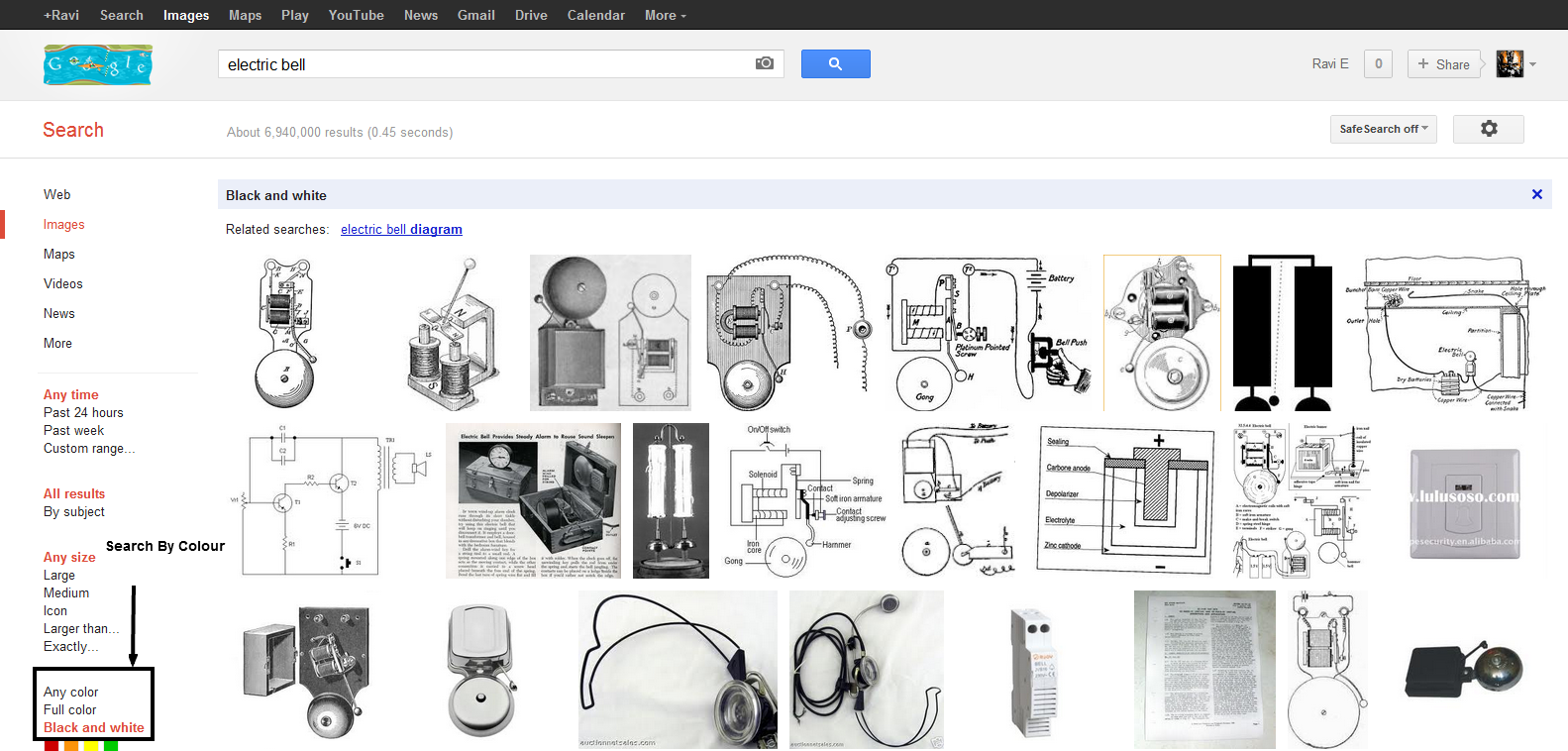
You can refine your searches by asking Google to search for results of a specific colour. You can do this by selecting the colour at the bottom of the left hand panel. For eg: If you want pictures of the sun in ana orange or reddish hue, click on the orange or red colour to get images of the sun which have the colour red in them. Similarly,if you are looking for layouts or diagrams, you can select black and white. For eg: You want to know about the working of an electric bell. So you search for it and click on black and white. This presents you with layouts and block diagrams which are predominantly in black or white.
-
Use proper keywords:
The use of proper keywords can make a lot of difference to your results. Use words with similar meanings or synonyms to better describe what you are searching for. Don’t use full sentence queries. Try to visualise what the answer that you might find in your results might look like.
For eg: You forgot the name of the famous amusement park that is situated in Gorai. Instead of typing a query like “What is the name of the amusement park situated in Gorai”, try a simple search like “amusement park in gorai”. The answer as you might find is EsselWorld, which was one of the first amusement parks to be set up in India.
- Find text on a web page:
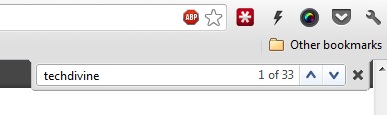
This is one trick that is very useful on long and lengthy web pages filled with text. Suppose you go to a site which has displayed your results. There are thousands of names listed. Instead of scrolling through them all, press Ctrl+F,and type in your name in the text box. Your browser will list all the matches for the word saving you a lot of reading.
-
Use Google to define words
This one is fairly straightforward. Typing “define:” followed by a word whose meaning you don’t know will list the definition of the word. This is particularly useful for students working on that hard essay.
-
Try searching in different types of media
Google offers search in a variety of categories. Try to go through them all and pick the one that you find most useful. Suppose you want to learn more about preparing pizza. You can read about it in blogs, find the different images for types of pizzas or even full length tutorials for making it on YouTube.
-
Read the search engine results page:
This is one of the most important points that people gloss over. Most people want their answers in the first 5 links. While not a wrong approach,it pays to sift through the various links that come up and make a wise and informed decision. Also not many people understand that the green text beneath the link is the URL of the page. Or that ellipsis (..) denote that the text is not complete in the summary. There is more text in continuation on the page. The above video enlightens you about some facts that you should know about when you are going through your search results.
- Use Google operators

Google offers quite a few search operators to fine tune your search results. A few of them are shown in this image. You can find more of them here.
-
Use Filetype:
The filetype operator is specifically used for finding a specific type of document. They could be PDF files, flash files (SWF), Google Earth files (KML), Excel files (XLS) or more. For eg: You might want to print out a few computer shortcuts for your younger sibling who is just learning the computer. Searching for “computer shortcuts filetype:pdf” will help you find a number of pdf files that you can then download on your computer.
-
Exclude terms from results
You can exclude selected terms that you don’t want to appear in your results. Suppose you want to find out about “salsa” the food and not dancing. Simply adding “-dancing” will exclude any search results about salsa dancing.
-
Use OR and Quotes
Quotes help to specify that you are searching for a phrase or that you want these words to be together and not at separate points in the page. If i search for “So we sailed into the sun, Till’ we found a sea of green”, i will find that these lines are from The Beatles song, “The Yellow Submarine”. OR helps you to combine a bunch of ideas. Like you search for:
“fish spa” OR “fish pedicure”
This tells Google that these two search terms are vaguely related to each other, so search for any of them.
- Use advanced search if necessary
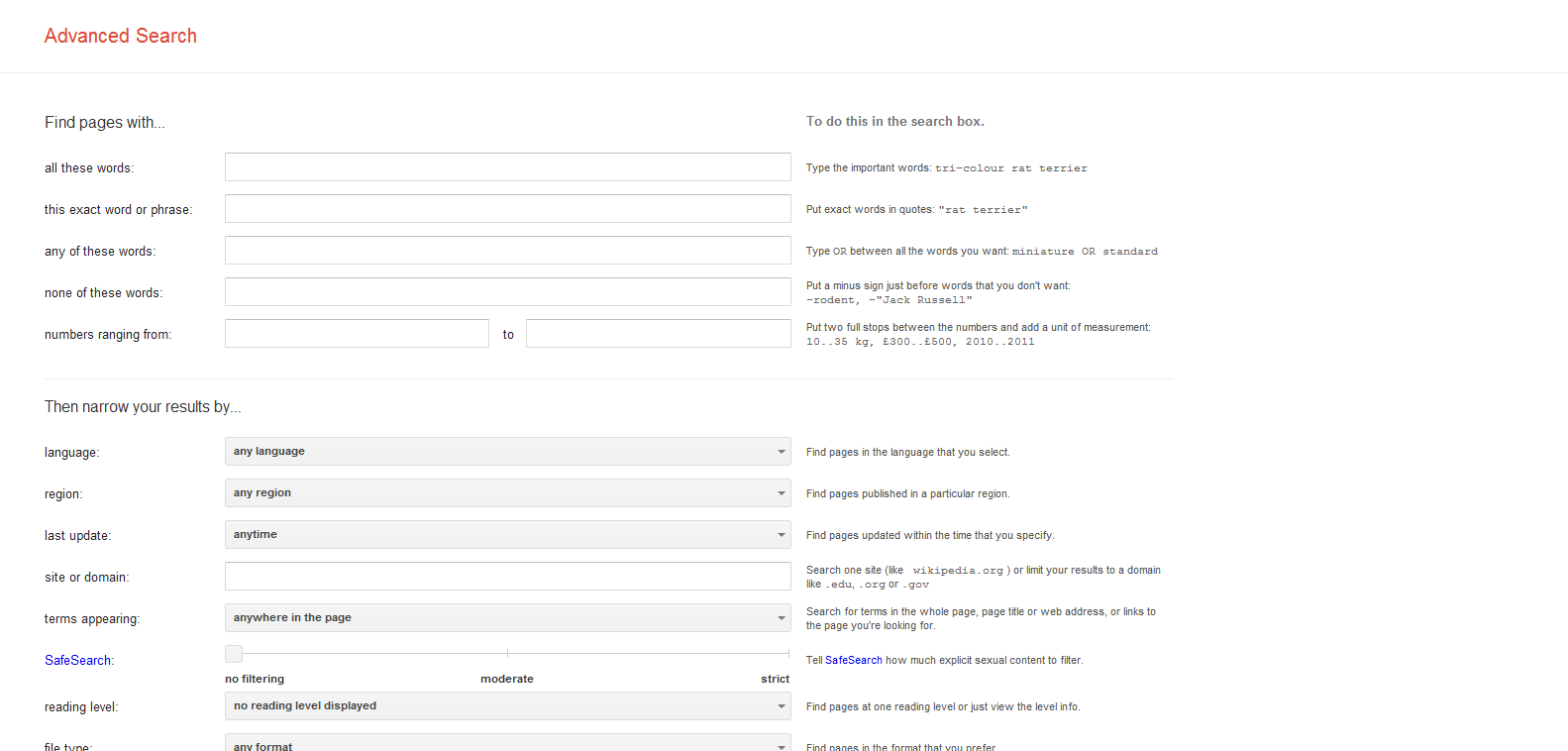
Not many people prefer using the advanced search menu. But in case you have trouble remembering all the search operators and commands, this is the best way to search as you only have to fill the required fields.
-
Search by image:
You can do a reverse image search by uploading an image you have. This can help you find the source of the image, similar themed images or images of a better quality.
-
Use Google search features:
Google offers results for some commonly searched terms like weather, movie listing, currency conversion, calculations, stock quotes and sports scores. You can find the complete list here.
-
Use tools from the left hand panel where available:
Keep an eye on the left hand panel. It changes to show tools according to the category you are in. For eg: In the news section, you have the ability to screen results between any particular date range. In some places, you change the language and use translate to read the article in your preferred language.
There are many more ways through which you can become a better googler. Let us know which of these tips helped you the most and which one is your favorite feature of google search. You can go through all the lessons on http://www.powersearchingwithgoogle.com/course
Connect with Us On:
Our BRANDS On Google Plus:
Related Posts: